 Laptop
  Desktop PC
  Accessory
  RAM
RAM  Hard Disk Drive
  Battery
 -
×
Subtotal:
.png)
Random Access Memory (RAM) frequency (often called RAM speed) is the clock rate at which a memory module can perform read/write cycles. It’s measured in megahertz (MHz), and a higher number means more cycles per second. For example, a DDR4-3200 stick does 3.2 billion cycles per second. Modern RAM kits have grown incredibly fast: DDR4 modules typically start around 2133 MHz and go up to ~4800 MHz, while today’s DDR5 kits begin at 4800 MHz and can top 8400 MHz in high-end models.
In this guide, we’ll walk you through all you need to know about RAM frequency. Let’s get started! By the way, if you are planning to buy a second-hand laptop in UAE, click here.
RAM frequency is the clock speed at which your memory operates, measured in megahertz (MHz). It determines how many cycles per second your RAM can perform, directly affecting how quickly your CPU can access and process data.
RAM frequency is usually printed on the memory module (e.g. “DDR5-6000” means 6000 MHz). Each cycle can read or write data. Faster RAM (higher MHz) can move more data in a given time, improving CPU-to-memory data transfer rates.
RAM speeds translate to higher memory bandwidth, letting your CPU move data in and out of RAM more quickly. While that sounds impressive, does it really affect your computer’s performance? In general, higher RAM frequency can improve performance in demanding tasks – such as gaming, video editing, or heavy computations, but the gains are often modest. In everyday use (web browsing, office work, streaming) the difference is usually too small to notice.
Overall, RAM frequency is one of the key specs (alongside capacity and timings) that influences memory performance.
Faster RAM frequency matters most in scenarios where the CPU frequently accesses memory. Benchmarks show that in CPU-heavy workloads (e.g. 3D rendering, scientific computing, video encoding), higher memory speed can noticeably boost performance.
For example, Puget Systems found that using DDR5-6000 vs. DDR4-3200 on the same Intel CPU gave about an 8% faster result in an Adobe Premiere Pro render. This is because the CPU spends less time waiting for data; higher-frequency RAM delivers data quicker.
In gaming, the impact is usually smaller but can still be measurable. Many games rely heavily on GPU, but some titles (especially CPU- or engine-bound games) see framerate boosts or smoother minima with fast memory. Testing has shown that bumping RAM speed often improves 1% and 0.1% low framerates (reducing stutter) even if average FPS changes only a little.
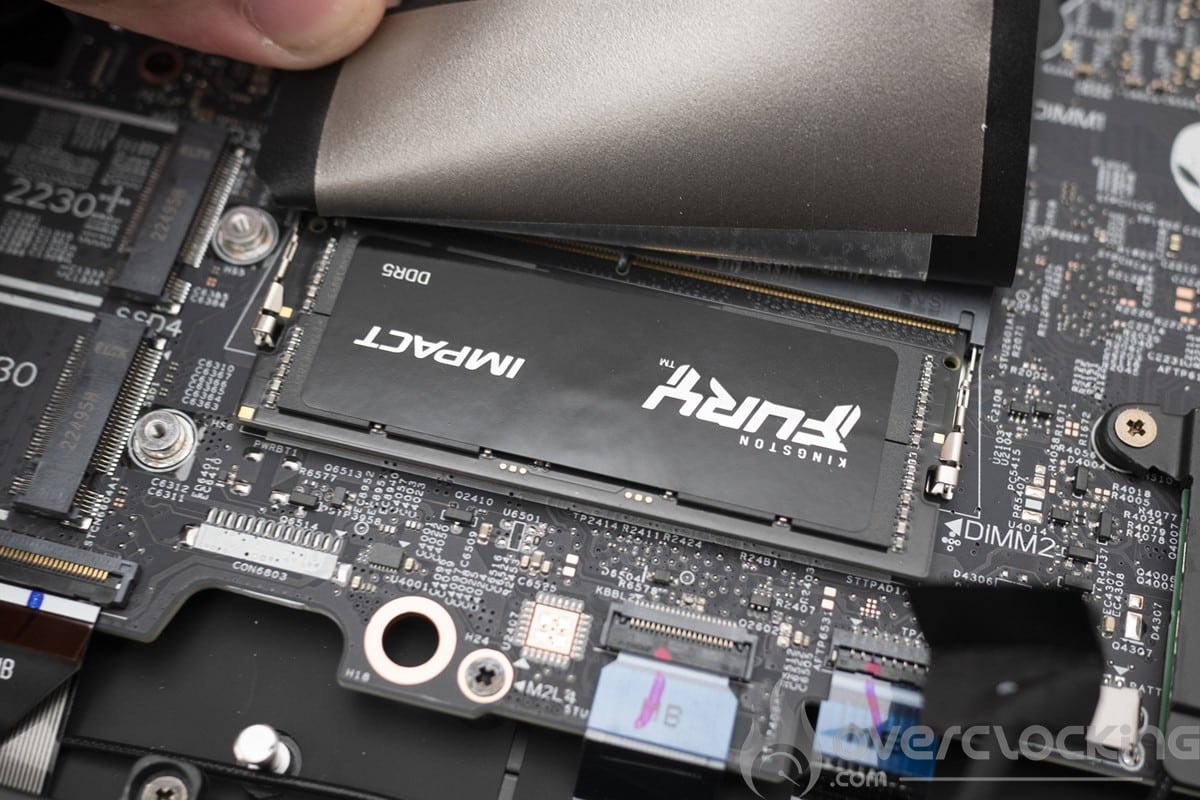
In best-case scenarios (titles optimized for fast memory), DDR5 vs DDR4 gave up to 20% higher minimum FPS. However, on average gaming gains are typically under 5%, and in some cases a faster kit can even score slightly lower due to higher latencies.
For most non-gaming and non-professional workloads (like browsing, office apps, video streaming), RAM frequency makes a negligible difference.
Here are some effects on RAM frequency:
Video Editing/Rendering: Heavy tasks like 4K video editing or 3D rendering benefit more from faster RAM. PugetSystems benchmarks show about 8% faster performance switching DDR5-6000 vs DDR4-3200. Content creators notice slightly reduced render times and smoother previews.
Gaming: In many games, average FPS might rise only a few percent with high-speed RAM, but frame stability often improves. For example, enabling XMP on DDR4 can significantly lift 1% low FPS (fewer dips). Enthusiast builders sometimes choose 3600MHz or higher DDR4/DDR5 to minimize stutters in competitive gaming.
Productivity: Tasks like photo editing or running virtual machines can see minor gains. However, most users won’t feel faster web browsing or document editing just from MHz. More RAM or a faster CPU/GPU usually provides a bigger impact on day-to-day responsiveness.
To find out what your RAM frequency is, you can use built-in or free tools:
Press Ctrl+Shift+Esc, go to the Performance tab and click Memory. The “Speed” field shows your current RAM frequency in MHz. (Remember, DDR stands for Double Data Rate, so the Task Manager might report the full effective rate.)
Run wmic memorychip get speed. This reports the real hardware speed in MHz. Note: Windows’ Task Manager may show the rated or peak speed, while WMIC shows actual running speed.
Tools like CPU-Z (free) display real-time memory frequency (usually listed as “DRAM Frequency”) and the DDR version. For DDR memory, double the DRAM frequency value to get the effective MHz (e.g. 1600 MHz shown in CPU-Z means DDR4-3200).
Restart your PC and enter the BIOS setup (commonly by pressing F2, Del, or F10). Look for the memory or “DRAM Frequency” setting under the overclocking or hardware monitor sections. This shows the current frequency and whether XMP/DOCP is enabled.
For example, a Windows 11 guide notes that Task Manager will list the RAM speed and that wmic memorychip get speed can confirm it. On a Mac, the “About This Mac” window shows the installed memory speed. In Linux, commands like sudo dmidecode --type memory or lshw -short -C memory will list the speed.
If you see a lower speed than expected (e.g. a 3200 MHz kit showing 2133 MHz), check that XMP/DOCP is enabled. Disabling XMP will run the RAM at the default JEDEC rate, often much lower. So to fully utilize your RAM’s rated frequency, ensure the overclocking profile is turned on in BIOS.
The right RAM frequency depends on your hardware and what you do with your PC. Key points to consider:
Your CPU and motherboard have maximum supported RAM speeds. Check your motherboard’s manual or specs for the highest frequency it supports for your DDR generation. Installing a faster kit than your board or CPU supports will simply run at the lower supported speed.
DDR4 motherboards typically top out around 3200–4800 MHz (depending on CPU), whereas DDR5 boards start at 4800 MHz and can go well above 6000 MHz. Make sure your system is DDR4 or DDR5 compatible before buying memory.
As a general guideline:
Casual Use (web, office, media): Even 2400–2666 MHz DDR4 is usually sufficient. These everyday tasks rarely use much memory bandwidth.
Gaming and Content Creation: Aim for 3200 MHz or higher (DDR4) or 4800–5600 MHz (DDR5) kits. For DDR4 gaming rigs, 3000–3600 MHz is a sweet spot – it offers good performance without extreme cost. Many gaming PCs come with DDR4-3200 or -3600 by default. DDR5 systems benefit from starting at ~4800 MHz, with 6000+ MHz preferred for high-end builds.
Enthusiast/Professional Workloads: If you do heavy 3D rendering, scientific computing, or want the absolute best gaming performance, you might choose 4000+ MHz DDR4 or 6000–7600 MHz DDR5. But note the law of diminishing returns: beyond a point the extra MHz yields tiny gains.
Ensure you have enough RAM capacity. 16 GB is a comfortable minimum for modern use (web, media, light gaming). If you run many apps or do heavy editing, 32 GB or more is becoming standard. If you don't have enough RAM, speed won’t help – your PC will slow down due to swapping.
In summary, RAM frequency defines the speed of your memory and can influence performance, especially in demanding tasks. Faster RAM allows more data per second between CPU and memory, which can translate to smoother multitasking, better game framerates, or quicker renders.
That said, the real-world impact is often modest, upgrades in RAM MHz usually yield single-digit percentage gains. Crucially, having enough RAM capacity is even more important to avoid slowdowns.
RAM frequency (speed) determines how fast data can be sent to and from the memory. A higher frequency means more data can move each second, increasing memory bandwidth.
In practice, higher frequency can improve performance in tasks that need a lot of memory throughput (gaming, video editing, simulations). However, latency (timing) also matters. Overall, frequency supplements CPU performance by feeding it data quicker.
This is simply the clock speed of the memory, measured in MHz. It indicates millions of cycles per second. For example, 3200 MHz means 3.2 billion cycles per second. Each cycle can read or write data. In marketing terms, a stick labeled “DDR4-3200” or “PC4-25600” is rated for 3200 MHz (or 25,600 MB/s bandwidth).
Your RAM frequency is the speed at which your memory is currently running. You can check it using Task Manager (Windows), system information tools, or BIOS. For instance, on Windows 10/11 you can open Task Manager (Ctrl+Shift+Esc), go to Performance → Memory, and read the “Speed” (MHz).
Or run wmic memorychip get speed in Command Prompt to see each module’s speed. Ensure XMP/DOCP is enabled to reach the rated frequency.
Only if your workload can use it. High-frequency RAM kits cost more, so they’re worth it for tasks that need memory bandwidth (e.g. 3D work, video editing, high-end gaming). For everyday use (web, email, media), the benefit is minimal.
If your GPU or CPU is not top-tier, very high RAM speed may not give much extra benefit. Always balance cost vs. need: sometimes adding more RAM or upgrading CPU/GPU yields a bigger improvement than a small increase in MHz.
Often, yes. You can enable XMP (Intel) or DOCP/EXPO (AMD) in your BIOS/UEFI to run existing RAM at its advertised maximum speed. This “overclocks” the RAM to its rated frequency.
You can also manually adjust frequency and timings in BIOS if you’re experienced. However, be cautious – pushing beyond your kit’s rated speed or your system’s limit can cause instability.

.jpg)